
Using GELLO with Franka#
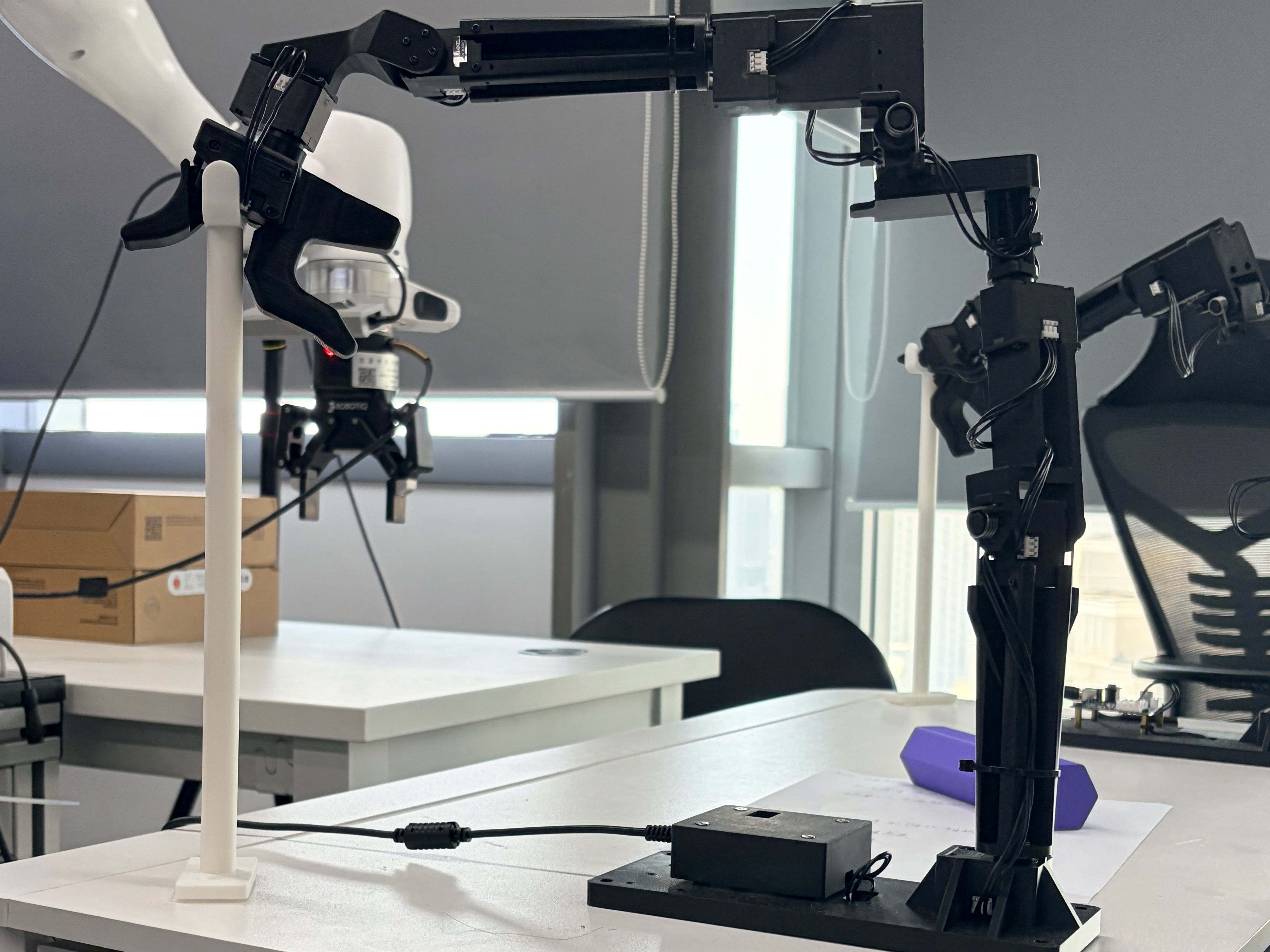
GELLO joint-level teleoperation device used to collect Franka demonstrations.#
Use GELLO as a joint-level teleoperation device for Franka data collection. You’ll install gello_teleop, verify the serial device, update collection configs, and monitor saved episodes.
Overview#
Collect Franka demonstrations with joint-level GELLO control instead of SpaceMouse.
Downstream CNN/OpenPI policies
Teleop collection · SFT/RL downstream
Franka demonstration collection
Franka · GELLO · gripper
Tasks#
Task |
Config / entry point |
Description |
|---|---|---|
GELLO test |
|
Verify live joint and gripper readings. |
Collection |
|
Save successful demonstrations from GELLO teleoperation. |
Monitoring |
|
Follow Ray worker collection progress from logs. |
Observation and Action#
Field |
Description |
|---|---|
Observation |
Same camera/state layout as the target Franka collection config. |
Action |
GELLO joint readings converted to Franka target pose or joint action. |
Reward |
Collection success flag or downstream task reward. |
Prompt |
Inherited from the downstream Franka task config. |
Installation#
GELLO depends on two packages that must be installed in order:
gello— the low-level driver from gello_software.gello-teleop— the forward-kinematics and teleoperation agent used by RLinf.
Both packages should be installed on the node that runs the GELLO device (typically the NUC / controller node).
1. Install gello (gello_software)#
Choose a directory to install the GELLO software, then clone the repository and initialize only the Dynamixel SDK submodule:
cd /path/to/install/gello
git clone https://github.com/wuphilipp/gello_software.git
cd gello_software
git submodule update --init third_party/DynamixelSDK
Note
gello_software also registers third_party/mujoco_menagerie (a
large repository of robot MJCF assets used only by the upstream mujoco
demo scripts). RLinf’s GELLO teleop path goes through
gello-teleop which ships its own Franka MJCF, so the menagerie
submodule is not needed. git submodule update --init <path>
registers and clones only the requested submodule; a plain
git submodule init would also queue the menagerie.
Install the gello package and the Dynamixel SDK (bundled as a
third-party submodule):
pip install -e .
pip install -e third_party/DynamixelSDK/python
The Dynamixel SDK is required for communicating with the Dynamixel servos
inside the GELLO device. Without it, the GelloAgent will not be able
to read joint positions.
Note
If you encounter permission issues accessing the serial device, add
your user to the dialout group:
sudo usermod -aG dialout $USER
Then log out and back in for the change to take effect.
For additional hardware configuration (e.g. setting unique motor IDs, DynamixelRobotConfig, and port mapping), refer to the gello_software README.
2. Install gello-teleop#
gello-teleop wraps the gello driver with Franka forward kinematics
(using dm_control/MuJoCo) and a teleoperation agent interface. Install it
as an editable checkout:
git clone https://github.com/RLinf/gello-teleop.git
cd gello-teleop
pip install -e .
3. Set up the serial device#
Plug the GELLO device into the controller node via the USB-FTDI adapter. Identify the serial port:
ls /dev/serial/by-id/
# Look for something like:
# usb-FTDI_USB__-__Serial_Converter_FTA0OUKN-if00-port0
Grant permission:
sudo chmod 666 /dev/serial/by-id/usb-FTDI_USB__-__Serial_Converter_FTA0OUKN-if00-port0
# Or add your user to the dialout group for persistent access:
sudo usermod -aG dialout $USER
Tip
Using the /dev/serial/by-id/ path is recommended over /dev/ttyUSB*
because it is stable across reboots and does not change when other USB
devices are plugged in.
4. Verify the GELLO device#
Run the built-in RLinf test script to confirm that the GELLO device is communicating correctly and producing valid TCP target readings:
export PYTHONPATH=$PWD:${PYTHONPATH:-}
python -m rlinf.envs.realworld.common.gello.gello_expert \
    --port /dev/serial/by-id/usb-FTDI_USB__-__Serial_Converter_FTA0OUKN-if00-port0
You should see continuously updating output like:
pos=[0.500 0.000 0.300] quat=[1.000 0.000 0.000 0.000] gripper=[0.040]
If the output is updating as you move the GELLO device, the installation is successful.
Configuration File#
To use GELLO for data collection, use the config file
examples/embodiment/config/realworld_collect_data_gello.yaml.
The key differences from the standard SpaceMouse config are:
env:
  eval:
    use_spacemouse: False
    use_gello: True
    gello_port: "/dev/serial/by-id/usb-FTDI_USB__-__Serial_Converter_FTA0OUKN-if00-port0"
Field |
Default |
Description |
|---|---|---|
|
|
Enable GELLO teleoperation. Set to |
|
|
Serial port path of the GELLO device. Required when |
|
|
Must be set to |
For full data collection instructions, refer to the Data Collection with GELLO section in Real-World RL with Franka.
Run It#
Because the collector runs as a Ray worker, its stdout is batched by
Ray’s log monitor, which breaks tqdm’s in-place \r refresh.
To get a live progress bar, run toolkits/realworld_check/collect_monitor.py
in a separate terminal — it tails the collector log and renders a
tqdm bar that surfaces success count, the latest keyboard events,
and discarded episodes.
# terminal 1 — launch (stdout tee'd to a log file)
bash examples/embodiment/collect_data.sh \
    realworld_collect_data_gello_joint_dual_franka 2>&1 \
    | tee logs/collect.log

# terminal 2 — live bar (waits for the log file to appear if needed)
python toolkits/realworld_check/collect_monitor.py logs/collect.log
The monitor replays the existing log on startup so episodes saved before
it launched are reflected in the bar’s initial position; pass
--no-replay to tail from EOF instead.
Cluster Setup Notes#
The cluster setup procedure is the same as described in Real-World RL with Franka. The key additional requirement is:
On the controller node (NUC): make sure both
gelloandgello-teleopare installed in the virtual environment before runningray start.
Warning
Remember that Ray captures the Python interpreter and environment
variables at ray start time. Any package installed after
ray start will not be visible to Ray workers. Always install
gello and gello-teleop first, then start Ray.
Troubleshooting#
GELLO device not detected
Verify the USB-FTDI adapter is connected:
ls /dev/serial/by-id/.Check
lsusbforFTDIdevices.Ensure the Dynamixel servos are powered on (the GELLO device needs external power for the servos).
Permission denied on serial port
Run
sudo chmod 666 /dev/serial/by-id/<your-device>.Or add your user to the
dialoutgroup:sudo usermod -aG dialout $USER(requires re-login).
Import error: ``No module named ‘gello’``
Ensure the
gellopackage (fromgello_software) is installed in the same virtual environment. Run:pip show gelloto verify.
Import error: ``No module named ‘gello_teleop’``
Ensure
gello-teleopis installed:pip show gello-teleopto verify.If using an editable install, make sure the repository path is correct.
GELLO readings are not updating
Check that the Dynamixel servo IDs match the configuration in
gello_software.Try lowering the baud rate in the GELLO configuration if communication is unreliable.
Ensure no other process is using the same serial port.