
RL with GenieSim Benchmark#
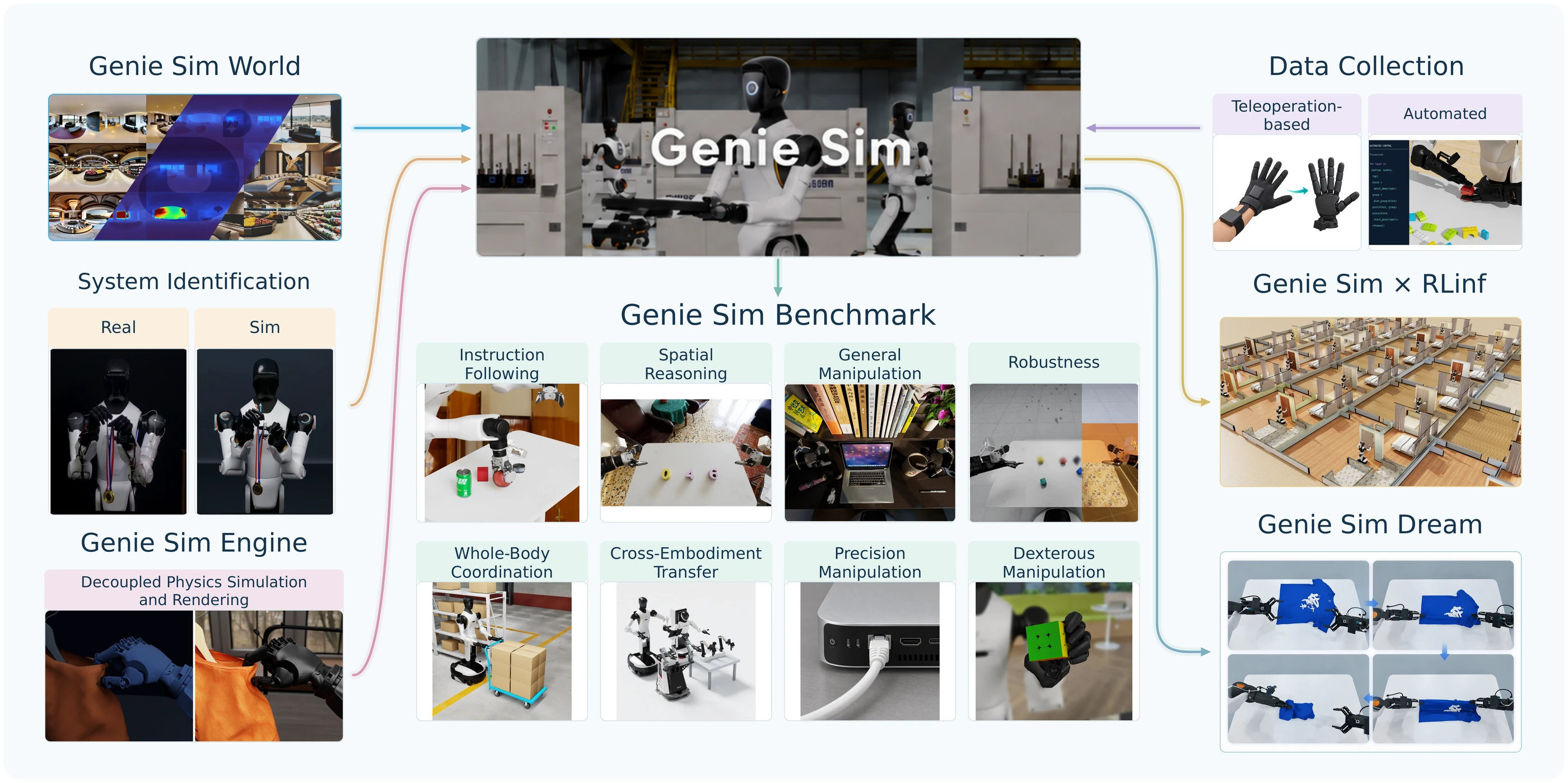
This is the official GenieSim post-training project using RLinf to train and evaluate vision-language-action (VLA) policies. Genie Sim is the simulation platform from AgiBot. It provides developers with a complete toolchain for scene reconstruction, asset generation, data collection, automated evaluation, and model post-training, accelerating the development of embodied intelligence. Its tasks span instruction following, spatial understanding, and manipulation, with object, scene, and instruction variations for studying generalization. RLinf supports PPO and GRPO fine-tuning of VLA models, with single-task and multi-task training workflows for improving dual-arm manipulation.
GenieSim simulation and RLinf training run on two GPU nodes. The node that runs RLinf is the training node, and the node that runs the simulator is the simulation node. The simulation node uses an NVIDIA RTX-series GPU.
Overview#
Improve language-guided dual-arm manipulation with PPO and GRPO. Compared with the SFT checkpoint, the ten-task PPO recipe improves block-color selection success from 71% to 95% and block-size selection from 60% to 92%.
VLA models
PPO, GRPO
Instruction · Spatial · Manipulation
2 GPU nodes
run_embodiment.sh → watch env/success_once.Tasks#
The 25 tasks span instruction following, spatial understanding, and manipulation skills. Use the single-task or multi-task recipes below; see the task appendix for all task identifiers.
Category |
Tasks |
Focus |
|---|---|---|
Instruction following |
10 |
Select objects by color, size, shape, number, category, and language descriptions. |
Spatial understanding |
8 |
Locate, place, sort, and stack objects using spatial relationships. |
Manipulation skills |
7 |
Open doors, handle containers, organize shelves, and clean a desktop. |
Observation and Action#
The OpenPI π₀.₅ configuration used in the G2 experiments combines three camera views, arm and gripper state, and a natural-language task instruction. The task appendix groups the 25 tasks by capability.
Field |
Specification |
|---|---|
Observation |
Three 640×480 RGB views, resized with aspect-preserving padding to 224×224 before model input. Proprioception uses 14 arm joint positions and 2 gripper opening angles. |
Action |
16-dim continuous action: 14 arm joint-position targets and 2 gripper targets, predicted as deltas in chunks of 10 steps. |
Reward |
The simulator keeps a task-completion score from 0 to 1. A task that splits into ordered stages scores the fraction of stages finished. A task that does not split is only 0 (not done) or 1 (done). Each step’s reward is the new score minus the previous score. |
Task prompt |
The full natural-language task instruction from |
The model uses 16 active state and action dimensions within its 32-dim input
and output space. Additional simulator state channels are masked, and model
outputs are reduced to the 16 robot-control dimensions. State and action
normalization uses the checkpoint’s assets/norm_stats.json.
Installation#
On the training node, outside any container, run the repository setup commands.
First, clone the RLinf repository:
# Mainland China users can use a mirror for faster cloning:
# git clone https://gh-proxy.com/github.com/RLinf/RLinf.git
git clone https://github.com/RLinf/RLinf.git
cd RLinf
Choose one of the following installation methods. Both install
rlinf-geniesim-client from GenieSim v3.5.0, which install.sh
clones automatically. To install from an existing GenieSim checkout instead,
set GENIESIM_PATH to it. See
Installation for prerequisites and
GPU driver setup.
Custom environment
On the training node, from the RLinf repository root, install OpenPI and the GenieSim client, then activate the environment:
# Mainland China users can add --use-mirror.
bash requirements/install.sh embodied --model openpi --env geniesim
source .venv/bin/activate
Docker image
On the training node, run this build from the RLinf repository root:
docker build -f docker/Dockerfile \
  --build-arg BUILD_TARGET=embodied-geniesim \
  --build-arg NO_MIRROR=1 \
  -t rlinf:embodied-geniesim .
The image provides an NVIDIA CUDA 12.8 training environment with OpenPI and the GenieSim client. Connect it to your GenieSim service to run training.
Still on the training node, in the RLinf repository root, start the container with the repository mounted:
docker run -it --rm --gpus all \
   --shm-size 32g \
   --network host \
   --name rlinf \
   -v "$(pwd):/workspace/RLinf" \
   --workdir /workspace/RLinf \
   rlinf:embodied-geniesim
The container opens in /workspace/RLinf. Inside the RLinf container,
activate OpenPI:
source switch_env openpi
Download the Model#
Download the OpenPI π₀.₅ SFT checkpoint for GenieSim, RLinf-Pi05-GenieSim-G2-Instruction-SFT, as the starting point for PPO or GRPO training.
The checkpoint was trained with 5,000 trajectories from the instruction_and_robust suite of GenieSim3.0-Dataset. SFT ran for 45,000 steps with an action chunk length of 10.
Run the download in the activated OpenPI environment. With Docker, run it on
the training node inside the RLinf container at /workspace/RLinf. With a
custom installation, run it on the training node in the RLinf repository
root. If you already have the checkpoint, set GENIESIM_CHECKPOINT_PATH to
a directory that environment can read, then continue to Run It.
pip install huggingface-hub

# For mainland China users:
# export HF_ENDPOINT=https://hf-mirror.com

export GENIESIM_CHECKPOINT_PATH="$PWD/checkpoints/geniesim_sft"
hf download RLinf/RLinf-Pi05-GenieSim-G2-Instruction-SFT \
   --local-dir "$GENIESIM_CHECKPOINT_PATH"
The example saves the checkpoint under the RLinf repository. Choose another
directory by changing GENIESIM_CHECKPOINT_PATH before downloading.
Training and evaluation read GENIESIM_CHECKPOINT_PATH for the model path.
You can also set the paths directly in YAML, using paths visible to the
RLinf process:
After downloading, point your config YAML at the checkpoint — set the same path for both the rollout and the actor model:
rollout:
   model:
      model_path: /path/to/downloaded-checkpoint
actor:
   model:
      model_path: /path/to/downloaded-checkpoint
Run It#
On the simulation node, follow the GenieSim post-training server guide
to prepare geniesim_assets and build the Isaac Sim 6.0.1-based image.
Use GenieSim v3.5.0, the same revision as the installed client.
Start the Simulation Server
On the simulation node, outside containers and from the GenieSim repository root, start and enter the server container:
geniesim docker --profile post-train up --headless
geniesim docker --profile post-train into
Inside the post_train_server container, from /workspace, start the
servers and check their status. The count, starting port, and GPU below are
example values; adjust them to match your RLinf configuration:
geniesim post-train server start --count 2 --base-port 5601 --devices 0
geniesim post-train server status --count 2 --base-port 5601
The example starts the two servers of the single-task recipes on GPU 0.
Each recipe needs the following servers and GPUs; the simulation GPUs are
RTX 4090s. --devices places consecutive ports on the same GPU, which
matches how each recipe groups its endpoints by env process:
Recipe |
Servers |
Ports |
Envs per server |
Simulation GPUs |
Training GPUs |
|
|---|---|---|---|---|---|---|
Single-task PPO / GRPO |
2 |
5601–5602 |
16 |
1 |
1 |
|
4-task PPO |
4 |
5601–5604 |
16 |
2 |
2 |
|
6-task PPO |
6 |
5601–5606 |
12 |
2 |
2 |
|
10-task PPO |
12 |
5601–5612 |
14 |
4 |
4 |
|
Start each recipe’s training servers with --count set to its server
count, --base-port 5601, and the --devices value from the table.
In another terminal on the simulation node, outside containers and from any directory, list this machine’s IP addresses and listening TCP ports:
hostname -I
ss -ltn
Replace sim-host below with an IP of the simulation node that the training
node can reach, and use the port the server is listening on. For detailed
options, see the
GenieSim server guide.
Run the RLinf commands on the training node, in the activated OpenPI
environment, from the RLinf repository root. With Docker, that is
/workspace/RLinf inside the container. With a custom installation, use
the repository directory on the training node. Keep the
GENIESIM_CHECKPOINT_PATH set above.
Note
On an RTX 4090, we recommend at most 42 parallel environments per GPU at
the default render width of 640, or 64 with
env.train.override_cfg.render_width set to 360. Servers on the same GPU
share this budget.
env.train.override_cfg.images_at_chunk_end_only is enabled by default.
With this option, RLinf and the simulator exchange complete action chunks,
rendering only the final frame of each chunk.
Train
Launch single-task PPO:
export GENIESIM_HOST_0=sim-host
bash examples/embodiment/run_embodiment.sh geniesim_pick_block_color_ppo_openpi_pi05
GRPO and multi-task recipes are listed in Visualization and Results.
Each recipe’s env.train.override_cfg.addresses lists the required server
endpoints; edit this list to change the address or port.
Training-time validation is disabled by default. If you enable it with a
positive runner.val_check_interval, set GENIESIM_EVAL_HOST to the
simulation node used for validation and start one more server for each port listed in
env.eval.override_cfg.addresses, as many as the training servers.
Evaluate
Set the simulation server’s address and launch standalone evaluation. The address below is an example; replace it with the server’s IP and port:
export GENIESIM_EVAL_SERVER_ADDR=tcp://sim-host:5601
bash evaluations/run_eval.sh geniesim_pick_block_color_eval
GENIESIM_EVAL_SERVER_ADDR sets env.eval.override_cfg.address in
evaluations/geniesim/geniesim_pick_block_color_eval.yaml; include the
chosen port in this variable. See the Evaluation CLI
for more options.
Visualization and Results#
Launch TensorBoard from the RLinf repo root:
tensorboard --logdir ../results --port 6006
The key signal is env/success_once. For every logged metric, see
Training metrics.
Enable video in the env config when you want rollout videos:
video_cfg:
  save_video: True
  info_on_video: True
  video_base_dir: ${runner.logger.log_path}/video/train
The following results use the Agibot G2 dual-arm wheeled robot, with GenieSim running on an RTX 4090.
Compare the SFT starting checkpoint with single-task PPO and GRPO, and PPO policies trained on mixes of 4, 6, and 10 tasks. All checkpoints use the same evaluation protocol.
subtask name |
SFT |
Single-Task PPO |
Single-Task GRPO |
4-Task PPO |
6-Task PPO |
10-Task PPO |
|---|---|---|---|---|---|---|
|
71.00% |
96.00% |
94.00% |
97.00%※ |
84.00%※ |
95.00%※ |
|
60.00% |
92.00% |
85.00% |
92.00%※ |
88.00%※ |
92.00%※ |
|
66.00% |
93.00% |
91.00% |
91.00%※ |
82.00%※ |
89.00%※ |
|
32.00% |
45.00% |
37.00% |
37.00%※ |
37.00%※ |
41.00%※ |
|
64.00% |
85.00% |
70.00% |
75.00% |
81.00%※ |
83.00%※ |
|
50.00% |
65.00% |
60.00% |
64.00% |
63.00%※ |
64.00%※ |
|
56.00% |
80.00% |
— |
76.00% |
71.00% |
78.00%※ |
|
50.47% |
63.55% |
— |
58.88% |
57.01% |
61.68%※ |
|
47.00% |
65.00% |
— |
53.00% |
51.00% |
53.00%※ |
|
16.00% |
— |
— |
14.00% |
8.00% |
18.00%※ |
※ indicates that the task was included in the corresponding multi-task model’s training mix.
Each success rate counts every test case of the sub-task (a scene instance paired with one instruction) exactly once. The standalone evaluation config runs 128 trajectories, more than a sub-task has test cases, so some cases run twice; the repeats were removed before computing the rates. The success rate logged during the run includes the repeats and can differ slightly from the table.
The training reference configs are in examples/embodiment/config/:
Single-task PPO:
geniesim_pick_block_color_ppo_openpi_pi05.yaml; change the task selection to train another task.Single-task GRPO:
geniesim_pick_block_color_grpo_openpi_pi05.yaml; change the task selection to train another task.4-task PPO:
geniesim_multitask4_ppo_openpi_pi05.yaml.6-task PPO:
geniesim_multitask6_ppo_openpi_pi05.yaml.10-task PPO:
geniesim_multitask10_ppo_openpi_pi05.yaml.
Appendix#
Generalization Parameters#
Field |
Default |
Description |
|---|---|---|
|
|
Training seed; nonnegative values enable reset randomization. |
|
|
Disable reset randomization during evaluation. |
|
|
Set under env.train or env.eval; null keeps simulator defaults. All generalization fields below belong in this mapping. |
|
|
Inherit task defaults; false skips this source. Explicit values take precedence. |
|
|
Inherit benchmark settings; false skips this source. Explicit values take precedence. |
|
|
Object XY position perturbation in meters; set to 0 to disable. |
|
|
Initial joint-position offsets within ±0.05 rad; set to 0 to disable. |
|
|
Base X/Y offsets within ±0.05 m; null disables them. Per-instance base poses skip the default perturbation. |
|
|
Lighting perturbation; true enables it. |
|
|
Material perturbation; true enables it. |
|
|
Background variation; true enables it. |
|
|
Camera-pose perturbation; enable with true and set nonzero thresholds in render.camera_pose.threshold. |
|
|
Joint PD-gain perturbation; enable with true and set scale ranges in joint_pd.kp_scale and joint_pd.kd_scale. |
Training Tasks#
Instruction Following
No. |
subtask name |
task name |
Description |
|---|---|---|---|
1 |
|
|
Pick a block of the specified color. |
2 |
|
|
Pick a billiard ball of the specified color. |
3 |
|
|
Pick the specific object named in the instruction. |
4 |
|
|
Pick a block of the specified size. |
5 |
|
|
Pick an object of the specified category. |
6 |
|
|
Pick an object satisfying either condition in the instruction. |
7 |
|
|
Pick a block bearing the specified number. |
8 |
|
|
Pick an object based on a common-sense description. |
9 |
|
|
Pick a block of the specified shape. |
10 |
|
|
Straighten an object on the table. |
Spatial Understanding
No. |
subtask name |
task name |
Description |
|---|---|---|---|
11 |
|
|
Pick an object at the specified absolute position. |
12 |
|
|
Pick an object based on its position relative to another object. |
13 |
|
|
Place an object at the specified position relative to another object. |
14 |
|
|
Place a beverage at another object’s position. |
15 |
|
|
Arrange cubes by size. |
16 |
|
|
Arrange numbered objects in numerical order. |
17 |
|
|
Stack bowls. |
18 |
|
|
Stack three building blocks. |
Manipulation Skills
No. |
subtask name |
task name |
Description |
|---|---|---|---|
19 |
|
|
Open a door. |
20 |
|
|
Pour out workpieces. |
21 |
|
|
Remove a misplaced item from a shelf. |
22 |
|
|
Hold a pot with both arms. |
23 |
|
|
Place a block into a box. |
24 |
|
|
Stock a shelf and straighten its items. |
25 |
|
|
Clear the desktop. |