RL with RoboTwin Benchmark#

This document provides a comprehensive guide to launching and managing Vision-Language-Action Models (VLAs) training tasks within the RLinf framework, focusing on finetuning a VLA model for robotic manipulation in the RoboTwin environment.

The primary objective is to develop a model capable of performing robotic manipulation by:

  1. Visual Understanding: Processing RGB images from the robot’s camera.

  2. Language Comprehension: Interpreting natural-language task descriptions.

  3. Action Generation: Producing precise robotic actions (position, rotation, gripper control).

  4. Reinforcement Learning: Optimizing the policy via PPO and GRPO with environment feedback.

RoboTwinEnv Environment#

RoboTwinEnv Environment

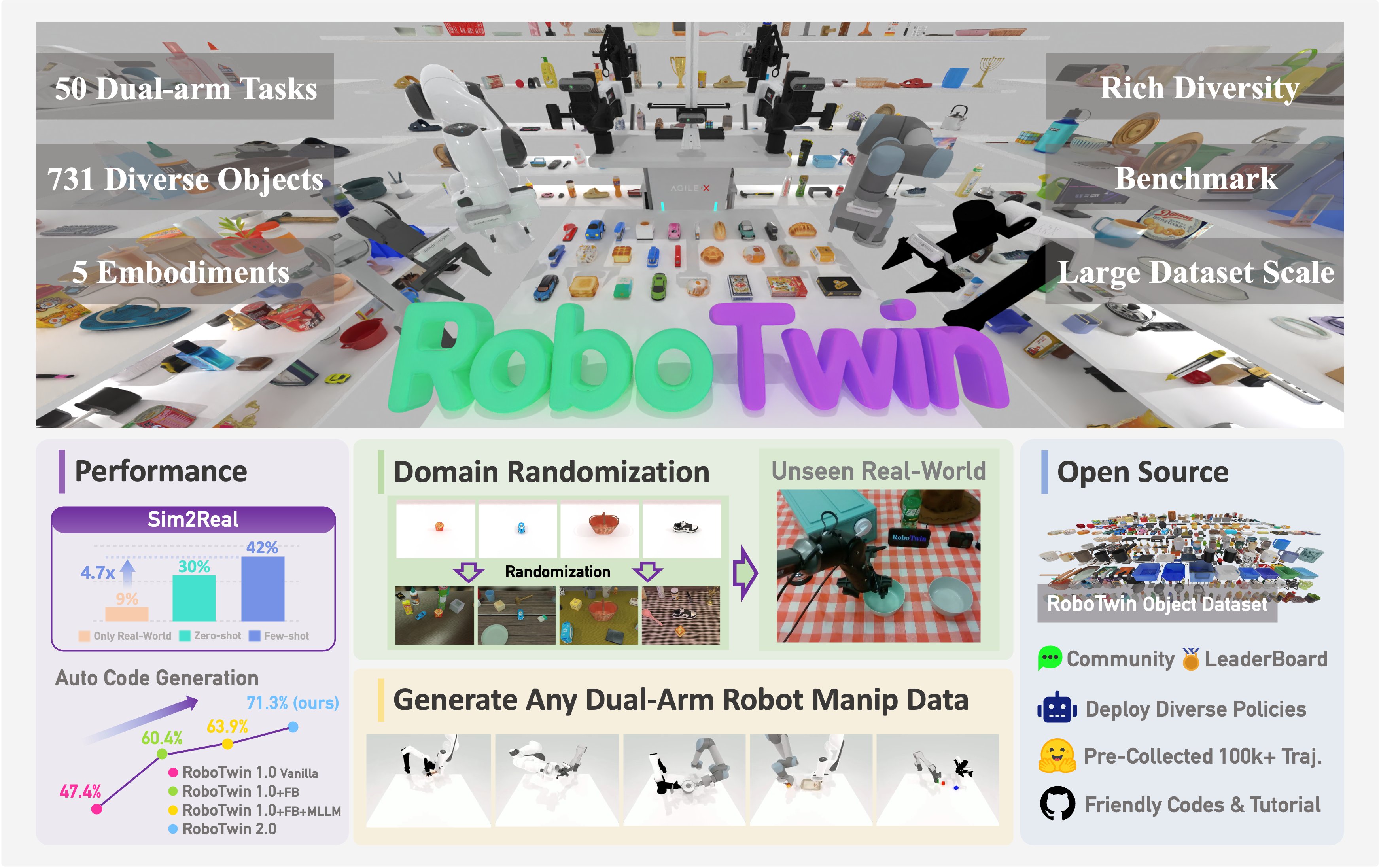
  • Environment: RLinf framework provides the RoboTwinEnv environment for reinforcement learning training based on the RoboTwin 2.0 simulation platform.

  • Task: Control a robotic arm to perform various manipulation tasks. RLinf RoboTwinEnv currently supports 46 tasks, and users can select tasks for training as needed.

    Placement Tasks

    • adjust_bottle: Pick up the bottle on the table headup with the correct arm.

    • place_a2b_left: Use appropriate arm to place object A on the left of object B.

    • place_a2b_right: Use appropriate arm to place object A on the right of object B.

    • place_bread_basket: If there is one bread on the table, use one arm to grab the bread and put it in the basket, if there are two breads on the table, use two arms to simultaneously grab up two breads and put them in the basket.

    • place_bread_skillet: Use one arm to grab the bread on the table and put it into the skillet.

    • place_burger_fries: Use dual arm to pick the hamburg and frenchfries and put them onto the tray.

    • place_can_basket: Use one arm to pick up the can, put it into the basket, and use another arm to lift the basket.

    • place_cans_plasticbox: Use dual arm to pick and place cans into plasticbox.

    • place_container_plate: Place the container onto the plate.

    • place_empty_cup: Use an arm to place the empty cup on the coaster.

    • place_mouse_pad: Grab the mouse and place it on a colored mat.

    • place_object_basket: Use one arm to grab the target object and put it in the basket, then use the other arm to grab the basket, and finally move the basket slightly away.

    • place_object_stand: Use appropriate arm to place the object on the stand.

    • place_phone_stand: Pick up the phone and put it on the phone stand.

    • place_shoe: Use one arm to grab the shoe from the table and place it on the mat.

    • place_dual_shoes: Use both arms to pick up the two shoes on the table and put them in the shoebox, with the shoe tip pointing to the left.

    Pick Tasks

    • pick_dual_bottles: Pick up one bottle with one arm, and pick up another bottle with the other arm.

    • pick_diverse_bottles: Pick up one bottle with one arm, and pick up another bottle with the other arm.

    • move_can_pot: There is a can and a pot on the table, use one arm to pick up the can and move it to beside the pot.

    • move_pillbottle_pad: Use one arm to pick the pillbottle and place it onto the pad.

    • move_playingcard_away: Pick up the playing card and move it away from the table.

    • move_stapler_pad: Use appropriate arm to move the stapler to a colored mat.

    • grab_roller: Use both arms to grab the roller on the table.

    • lift_pot: Use arms to lift the pot.

    • put_bottles_dustbin: Use arms to grab the bottles and put them into the dustbin to the left of the table.

    Stacking Tasks

    • stack_blocks_two: Stack the green block on the red block.

    • stack_blocks_three: Stack the blue block on the green block, and then stack the green block on the red block.

    • stack_bowls_two: Stack the two bowls on top of each other.

    • stack_bowls_three: Stack the three bowls on top of each other.

    Ranking Tasks

    • blocks_ranking_rgb: Arrange the blocks in the order of red, green, and blue from left to right.

    • blocks_ranking_size: Arrange the blocks from largest to smallest, from left to right.

    Tool Use & Interaction Tasks

    • click_alarmclock: Click the alarm clock’s center of the top side button on the table.

    • click_bell: Click the bell’s top center on the table.

    • beat_block_hammer: Grab the hammer and hit the block.

    • open_microwave: Use one arm to open the microwave.

    • press_stapler: Use one arm to press the stapler.

    • stamp_seal: Grab the stamp and stamp onto the specific color mat.

    • turn_switch: Use the robotic arm to click the switch.

    Handover Tasks - handover_block: Use the left arm to grasp the red block, handover it to the right arm, and then place it on the blue pad. - handover_mic: Use one arm to grasp the microphone and handover it to the other arm.

    Pouring, Dumping & Shaking Tasks

    • shake_bottle: Shake the bottle with proper arm.

    • shake_bottle_horizontally: Shake the bottle horizontally with proper arm.

    • dump_bin_bigbin: Grab the small bin and pour the balls into the big bin.

    Hanging & Special Tasks

    • hanging_mug: Use the left arm to pick up the mug and adjust its pose, then use the right arm to pick it up again and hang it onto the rack.

    • scan_object: Use one arm to hold the scanner, use the other arm to hold the object, and complete the scanning.

    • rotate_qrcode: Pick up the QR code board and rotate it so that the QR code faces the robot.

    Note

    Currently four tasks are not yet supported: place_fan, open_laptop, place_object_scale, and put_object_cabinet. Additionally, dense reward functions are still under development and will gradually be extended to all tasks.

  • Observation: The observation returned by RLinf RoboTwinEnv environment is a dictionary (dict) containing the following fields:

    • images: Head camera RGB images

      • Type: torch.Tensor

      • Shape: [batch_size, 224, 224, 3]

      • Data Type: uint8 (0-255)

      • Description: Head camera images processed with center crop, one image per environment

    • wrist_images: Wrist camera RGB images (optional)

      • Type: torch.Tensor or None

      • Shape: [batch_size, num_wrist_images, 224, 224, 3] (if exists)

      • Data Type: uint8 (0-255)

      • Description: May contain left wrist camera (left_wrist_image) and/or right wrist camera (right_wrist_image) images, or None if the task does not require wrist images

    • states: Proprioception information

      • Type: torch.Tensor

      • Shape: [batch_size, 14]

      • Data Type: float32

      • Description: Contains end-effector pose information (position and orientation), 14 dimensions total, corresponding to proprio_dim=14

    • task_descriptions: Task description text

      • Type: List[str]

      • Length: batch_size

      • Description: Natural language task descriptions for each environment, e.g., “What action should the robot take to place the empty cup on the coaster?”

  • Action Space: 14-dimensional continuous action space

    • Type: torch.Tensor or numpy.ndarray

    • Shape: [batch_size, action_dim] or [batch_size, horizon, action_dim], where action_dim=14

    • Data Type: float32

    • Action Components:

      • End-effector 3D position control (x, y, z): 3 dimensions

      • 3D rotation control (roll, pitch, yaw): 3 dimensions

      • Gripper control (open/close): 1 dimension

      • Joint position control: 7 dimensions

      • Total: 14 dimensions

Dependency Installation#

1. Clone RLinf Repository#

# For mainland China users, you can use the following for better download speed:
# git clone https://ghfast.top/github.com/RLinf/RLinf.git
git clone https://github.com/RLinf/RLinf.git
cd RLinf

2. Install Dependencies#

Option 1: Docker Image

RLinf provides a pre-configured RoboTwin environment Docker image that includes all required dependencies and can be used directly, skipping all subsequent installation steps.

docker run -it --rm --gpus all \
   --shm-size 20g \
   --network host \
   --name rlinf \
   -v .:/workspace/RLinf \
   rlinf/rlinf:agentic-rlinf0.2-robotwin
   # If you need to download the image faster in China, you can use:
   # docker.1ms.run/rlinf/rlinf:agentic-rlinf0.2-robotwin

Note

The Docker image includes:

  • RLinf RoboTwin environment dependencies

  • Compatibility patches applied

  • Support for OpenVLA-OFT, OpenPI models

After using the Docker image, you can directly proceed to the RoboTwin Repository Clone and Assets Download , ** `Model Download`_ **and Running Scripts sections, skipping all subsequent installation steps.

Option 2: Custom Environment

Install dependencies directly in your environment by running the following command. Replace the --model openvla-oft parameter with the corresponding model name (openvla-oft or OpenPI) based on the model you want to train:

# To speed up dependency installation in China, you can add `--use-mirror` to the install.sh command below

bash requirements/install.sh embodied --model openvla-oft --env robotwin
source .venv/bin/activate

This script will automatically:

  • Install RLinf RoboTwin environment dependencies

  • Apply RoboTwin compatibility patches (fixing compatibility issues between sapien and mplib)

  • Install dependencies for the corresponding VLA model

RoboTwin Repository Clone and Assets Download#

RoboTwin Assets are asset files required by the RoboTwin environment and need to be downloaded from HuggingFace.

# 1. Clone RoboTwin repository
git clone https://github.com/RoboTwin-Platform/RoboTwin.git -b RLinf_support

# 2. Download and extract Assets files
bash script/_download_assets.sh

Model Download#

Before starting training, you need to download the corresponding SFT model:

# Download the model (choose either method)
# Method 1: Using git clone
git lfs install
git clone https://huggingface.co/RLinf/RLinf-OpenVLAOFT-RoboTwin-SFT-place_empty_cup

# Method 2: Using huggingface-hub
# For mainland China users, you can use the following for better download speed:
# export HF_ENDPOINT=https://hf-mirror.com
pip install huggingface-hub
hf download RLinf/RLinf-OpenVLAOFT-RoboTwin-SFT-place_empty_cup --local-dir RLinf-OpenVLAOFT-RoboTwin-SFT-place_empty_cup

After downloading, ensure that the model path is correctly specified in the configuration yaml file (actor.model.model_path).

Running Scripts#

Please ensure that the correct Python virtual environment (venv) is activated before running the commands below. If you are using the official Docker image, switch the environment according to the model type:

  • OpenVLA-OFT:source switch_env openvla-oft

  • OpenPI(π0/ π0.5):source switch_env OpenPI

1. Key Parameter Configuration

1.1 OpenVLA-OFT + GRPO

Taking the OpenVLA-OFT model as an example, the following key parameters should be configured in actor.model:

actor:
  model:
    model_path: "/path/to/RLinf-OpenVLAOFT-RoboTwin-SFT-place_empty_cup"  # Path to the SFT model
    model_type: "openvla_oft"                                             # Set model type to openvla_oft
    implement_version: "official"                                         # Implementation version of OpenVLA-OFT (RLinf integrates both the official OFT implementation and the RLinf SFT implementation; RoboTwin uses the official version)
    action_dim: 14                                                        # Action dimension in RoboTwin (14D)
    use_proprio: True                                                     # Whether to use proprioceptive information
    proprio_dim: 14                                                       # Dimension of proprioceptive input
    use_film: False                                                       # Whether to use FiLM layers
    num_images_in_input: 1                                                # Number of input images
    num_action_chunks: 25                                                 # Number of action chunks
    unnorm_key: "place_empty_cup"                                         # Action normalization key (must match the unnorm_key used during SFT training)

1.2 \(\pi_0\) + PPO

For π0+ PPO training in RoboTwin, it is recommended to reuse the RoboTwin configuration from OpenPI and switch to the actor–critic structure:

actor:
  model:
   model_path: "/path/to/RLinf/RLinf-Pi0-RoboTwin-SFT-adjust_bottle"
   num_action_chunks: 50 # interface for the env
   add_value_head: True
   action_dim: 14
   OpenPI:
      config_name: "pi0_aloha_robotwin"
      num_images_in_input: 3
      detach_critic_input: True

1.3 \(\pi_0.5\) + PPO

π0.5already provides a ready-to-use PPO training configuration for RoboTwin. An example configuration is shown below:

actor:
   model:
      model_path: "/path/to/RLinf/RLinf-Pi05-RoboTwin-SFT-adjust_bottle"
      num_action_chunks: 50 # interface for the env
      action_dim: 14
      add_value_head: True
      OpenPI:
         config_name: "pi05_aloha_robotwin"
         num_images_in_input: 3
         detach_critic_input: True

2. Environment Configuration

In the environment configuration file, the following key parameters need to be set:

env/train: robotwin_place_empty_cup
env/eval: robotwin_place_empty_cup

# In env/train/robotwin_place_empty_cup.yaml:
env_type: robotwin
assets_path: "/path/to/robotwin_assets"

task_config:
  task_name: place_empty_cup  # or other task names
  step_lim: 200
  embodiment: [piper, piper, 0.6]
  camera:
    head_camera_type: D435
    wrist_camera_type: D435
    collect_head_camera: true
    collect_wrist_camera: false

For OpenPI configurations (π0/ π0.5), the following additional settings should be noted:

  • env.train.center_crop: False and env.eval.center_crop: False: disable center cropping

  • env.*.task_config.embodiment: [aloha-agilex]: switch to the AgileX robot embodiment configuration

  • env.*.task_config.camera.collect_wrist_camera: true: enable wrist camera input

3. Configuration Files

The following configuration files can be directly referenced for RoboTwin:

  • OpenVLA-OFT + GRPOexamples/embodiment/config/robotwin_place_empty_cup_grpo_openvlaoft.yaml

  • π₀ + PPOexamples/embodiment/config/robotwin_adjust_bottle_ppo_OpenPI.yaml

  • π₀ Evalexamples/embodiment/config/robotwin_adjust_bottle_ppo_OpenPI_eval.yaml

  • π₀.₅ + PPOexamples/embodiment/config/robotwin_adjust_bottle_ppo_OpenPI_pi05.yaml

  • π₀.₅ Evalexamples/embodiment/config/robotwin_adjust_bottle_ppo_OpenPI_pi05_eval.yaml

4. Launch Command

After selecting the configuration, run the following command to start training:

# Set ROBOT_PLATFORM environment variable
export ROBOT_PLATFORM=ALOHA
# Set ROBOTWIN_PATH environment variable
export ROBOTWIN_PATH=/path/to/RoboTwin

bash examples/embodiment/run_embodiment.sh CHOSEN_CONFIG

For example, to train the OpenVLA-OFT model using GRPO in the RoboTwin environment:

# Set ROBOT_PLATFORM environment variable
export ROBOT_PLATFORM=ALOHA
# Set ROBOTWIN_PATH environment variable
export ROBOTWIN_PATH=/path/to/RoboTwin

bash examples/embodiment/run_embodiment.sh robotwin_place_empty_cup_grpo_openvlaoft

For example, to train the π0.5model using PPO:

export ROBOT_PLATFORM=ALOHA
export ROBOTWIN_PATH=/path/to/RoboTwin

bash examples/embodiment/run_embodiment.sh robotwin_adjust_bottle_ppo_OpenPI_pi05

Visualization and Results#

1. TensorBoard Logs

# Start TensorBoard
tensorboard --logdir ./logs --port 6006

2. Video Generation

Videos from training and evaluation processes are automatically saved. Configuration:

video_cfg:
  save_video: True
  info_on_video: True
  video_base_dir: ${runner.logger.log_path}/video/train  # Training videos
  # or
  video_base_dir: ${runner.logger.log_path}/video/eval   # Evaluation videos

Evaluation Results#

Evaluation results of OpenVLA-OFT models on seven RoboTwin tasks#

Task

OpenVLA-OFT (SFT)

OpenVLA-OFT (RLinf-GRPO)

OpenVLA-OFT (RLinf-PPO)

beat_block_hammer

huggingface 10.15%

huggingface 96.09%

pick_dual_bottles

huggingface 20.31%

huggingface 92.96%

place_empty_cup

huggingface 75.78%

huggingface 94.53%

huggingface 92.97%

place_container_plate

huggingface 54.69%

huggingface 95.31%

move_can_pot

huggingface 9.37%

huggingface 83.59%

lift_pot

huggingface 3.13%

huggingface 70.31%

handover_block

huggingface 28.13%

huggingface 70.31%

Average

28.79%

86.16%

Δ Avg.

+57.37%

Evaluation Results of OpenPI on RoboTwin Tasks#

Task

Pi0 (SFT)

Pi0 (RLinf-PPO)

Pi0.5 (SFT)

Pi0.5 (RLinf-PPO)

adjust_bottle

huggingface 76.56%

huggingface 98.44%

huggingface 85.94%

huggingface 96.09%

Average

76.56%

98.44%

85.94%

96.09%

Δ Avg.

21.88%

10.15%

Note

All OpenVLA-OFT models are trained under the demo_randomized setting; all OpenPI models are trained under the demo_clean setting. For more details, please refer to the RoboTwin configuration documentation.

Evaluation Script#

This section describes how to evaluate (Eval) different VLA models on the RoboTwin evaluation platform. In RLinf, model evaluation reuses the same configuration files (YAML) as training. In most cases, evaluation mode can be enabled by simply setting runner.only_eval to True in the corresponding YAML file.

  1. OpenVLA-OFT Model Evaluation

    Please ensure that the correct Python virtual environment has been activated before running. If you are using the official Docker image, switch the environment with:

    source switch_env openvla-oft
    

    Taking the GRPO algorithm and the place_empty_cup task as an example, the corresponding configuration file is:

    • examples/embodiment/config/robotwin_place_empty_cup_grpo_openvlaoft.yaml

  2. π₀ Model Evaluation

    Please ensure that the correct Python virtual environment has been activated before running. If you are using the official Docker image, switch the environment with:

    source switch_env OpenPI
    

    Taking the PPO algorithm and the adjust_bottle task as an example, the corresponding configuration file is:

    • examples/embodiment/config/robotwin_adjust_bottle_ppo_OpenPI_eval.yaml

  3. π₀.₅ Model Evaluation

    Please ensure that the correct Python virtual environment has been activated before running. If you are using the official Docker image, switch the environment with:

    source switch_env OpenPI
    

    Taking the PPO algorithm and the adjust_bottle task as an example, the corresponding configuration file is:

    • examples/embodiment/config/robotwin_adjust_bottle_ppo_OpenPI_pi05_eval.yaml

  4. Evaluation Mode Configuration

    In any of the configuration files above, set runner.only_eval to True:

    runner:
      task_type: embodied
      logger:
        log_path: "../results"
        project_name: rlinf
        experiment_name: "robotwin_grpo_openvlaoft"
        logger_backends: ["tensorboard"]
    
      max_epochs: 1000
      max_steps: -1
      only_eval: True
    
  5. Launch Evaluation

    export ROBOT_PLATFORM=ALOHA
    export ROBOTWIN_PATH=/path/to/RoboTwin
    
    bash examples/embodiment/eval_embodiment.sh CHOSEN_CONFIG
    
  6. Notes

    • The OpenVLA-OFT model currently uses the [piper, piper, 0.6] robot embodiment configuration

    • The π0and π0.5models currently use the [aloha-agilex] robot embodiment configuration

    • For additional parameters and details, please refer to the next section Configuration Details

Configuration Details#

OpenVLA-OFT Key Configuration#

  1. Model Configuration:

    • actor.model.model_type: "openvla_oft": Use OpenVLA-OFT model

    • actor.model.implement_version: "official": Use OpenVLA-OFT official version

    • actor.model.action_dim: 14: 14-dimensional action space (including proprioception)

    • actor.model.use_proprio: True: Enable proprioception input

    • actor.model.proprio_dim: 14: Proprioception dimension

    • actor.model.num_action_chunks: 25: Number of action chunks

  2. Algorithm Configuration:

    • algorithm.reward_type: chunk_level: Chunk-level rewards

    • algorithm.logprob_type: token_level: Token-level log probabilities

    • algorithm.n_chunk_steps: 8: Number of steps per chunk

  3. Environment Configuration:

    • env.train.task_config.task_name: Task name (e.g., place_empty_cup)

    • env.train.task_config.embodiment: Robot configuration

    • env.train.task_config.camera: Camera configuration

π0and π0.5Key Configuration#

  1. Model Configuration

    • actor.model.num_action_chunks: 50:number of action chunks

    • actor.model.action_dim: 14:action dimension

    • actor.model.add_value_head: True:PPO training requires a value head

    • actor.model.OpenPI.num_images_in_input: 3:number of input images

  2. Model Configuration Name

    • π0actor.model.OpenPI.config_name: "pi0_aloha_robotwin"

    • π0.5actor.model.OpenPI.config_name: "pi05_aloha_robotwin"

  3. Algorithm Configuration

    • algorithm.reward_type: chunk_level:chunk-level reward

    • algorithm.logprob_type: chunk_level:chunk-level log probability

    • algorithm.adv_type: gae:use GAE for advantage estimation

    • algorithm.loss_type: actor_critic:use actor–critic loss

  4. Environment Configuration

    • env.train.center_crop: False and env.eval.center_crop: False:disable center cropping

    • env.*.task_config.embodiment: [aloha-agilex]:use the AgileX robot configuration instead of [piper, piper, 0.6] used in OFT

    • env.*.task_config.camera.collect_wrist_camera: true:enable wrist camera input

    • fsdp.gradient_checkpointing: False:OpenPI currently does not support enabling gradient checkpointing

For more detailed information about RoboTwin configuration, please refer to the RoboTwin Configuration Documentation.

Important Notes#

  1. Resource Paths: Ensure the assets_path is correct

  2. ROBOT_PLATFORM Environment Variable: Ensure the ROBOT_PLATFORM variable is set to ALOHA

  3. RoboTwin Repo: Ensure the RoboTwin repo path is added to PYTHONPATH, e.g., export PYTHONPATH=/opt/robotwin:$PYTHONPATH

  4. GPU Memory: The RoboTwin environment may require significant GPU memory, it is recommended to use enable_offload: True

  5. Task Configuration: Modify parameters in task_config according to specific tasks